Form Templates
Public Skins offer four template layouts. Each template provides a different visual presentation while maintaining the same form functionality. These templates work across giving forms, event registration, and other public-facing experiences.
Template Comparison
| Template | Best For | Hero Image | Side Content |
|---|---|---|---|
| Hero | Campaigns with strong imagery | Yes (full-width) | No |
| FiftyFifty | Balanced content + form | Yes (half-width) | Yes |
| Floating | Subtle branding | Yes (background) | No |
| Vanilla | Simple, fast, minimal | No | No |
Hero Template
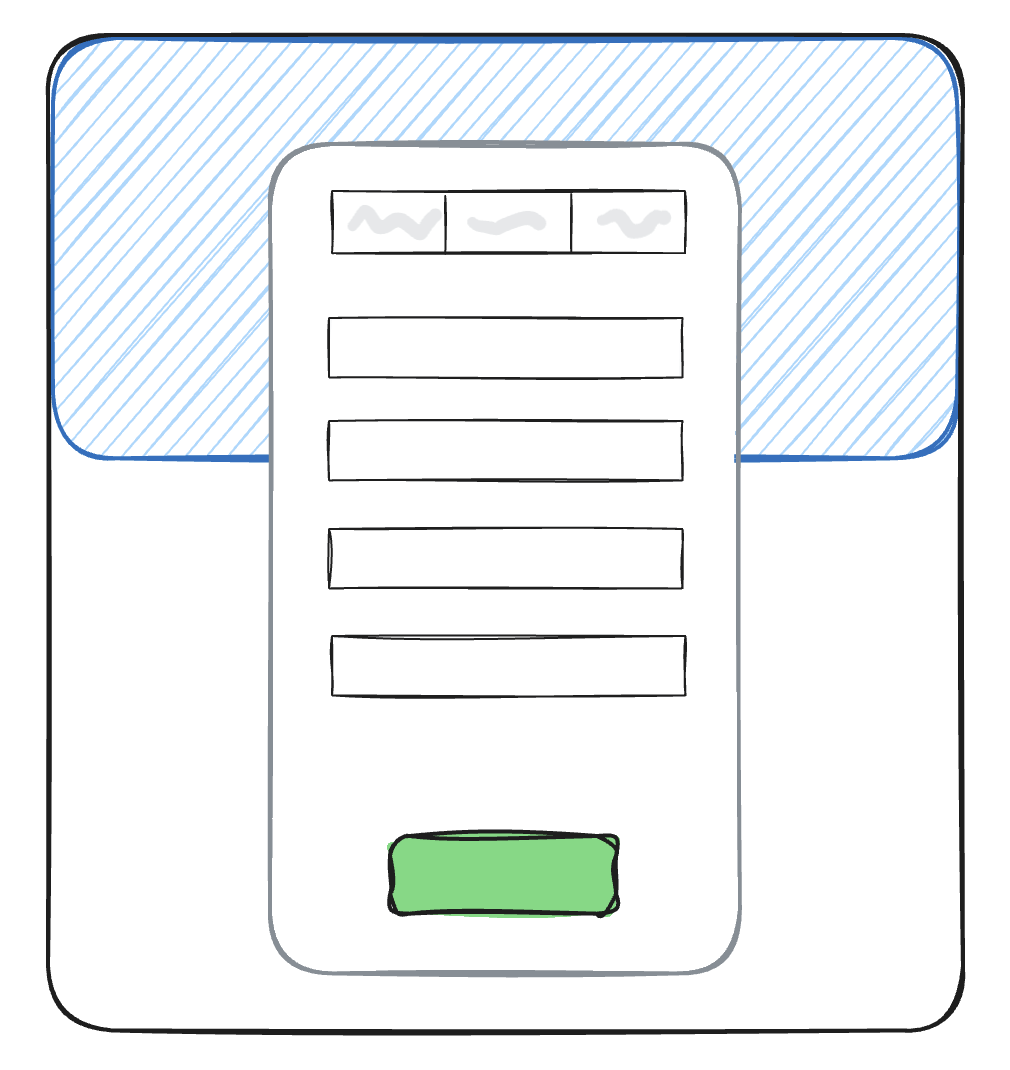
The Hero template features a full-width hero image at the top of the page with the form below. This layout works well when visual impact is important.
Configuration Options
| Setting | Description |
|---|---|
| Hero Image URL | Full URL to your hero image |
| Hero Image Alt Text | Accessibility description |
| Hero Image Position | Anchor point for image cropping |
| Hero Message | Optional text overlay on the hero image |
| Include Header | Show header above hero |
| Header HTML | Custom header content |
| Fixed Header | Make header sticky when scrolling |
| Include Footer | Show footer below form |
| Footer HTML | Custom footer content |
Hero Image Guidelines
- Recommended size: At least 1920px wide
- Aspect ratio: Wide/landscape orientation works best
- File format: JPG for photos, PNG for graphics
- File size: Keep under 500KB for fast loading
Hero Image Position Options
The position setting controls which part of the image stays visible when the browser crops it to fit:
top-left,top,top-rightleft,center,rightbottom-left,bottom,bottom-right
For example, if your image has the main subject on the right side, use right or top-right to ensure it remains visible on all screen sizes.
Hero Message
An optional text overlay appears in a semi-transparent box over the hero image. Use this for campaign taglines or calls to action. Basic HTML (<strong>, <em>) is supported.
FiftyFifty Template
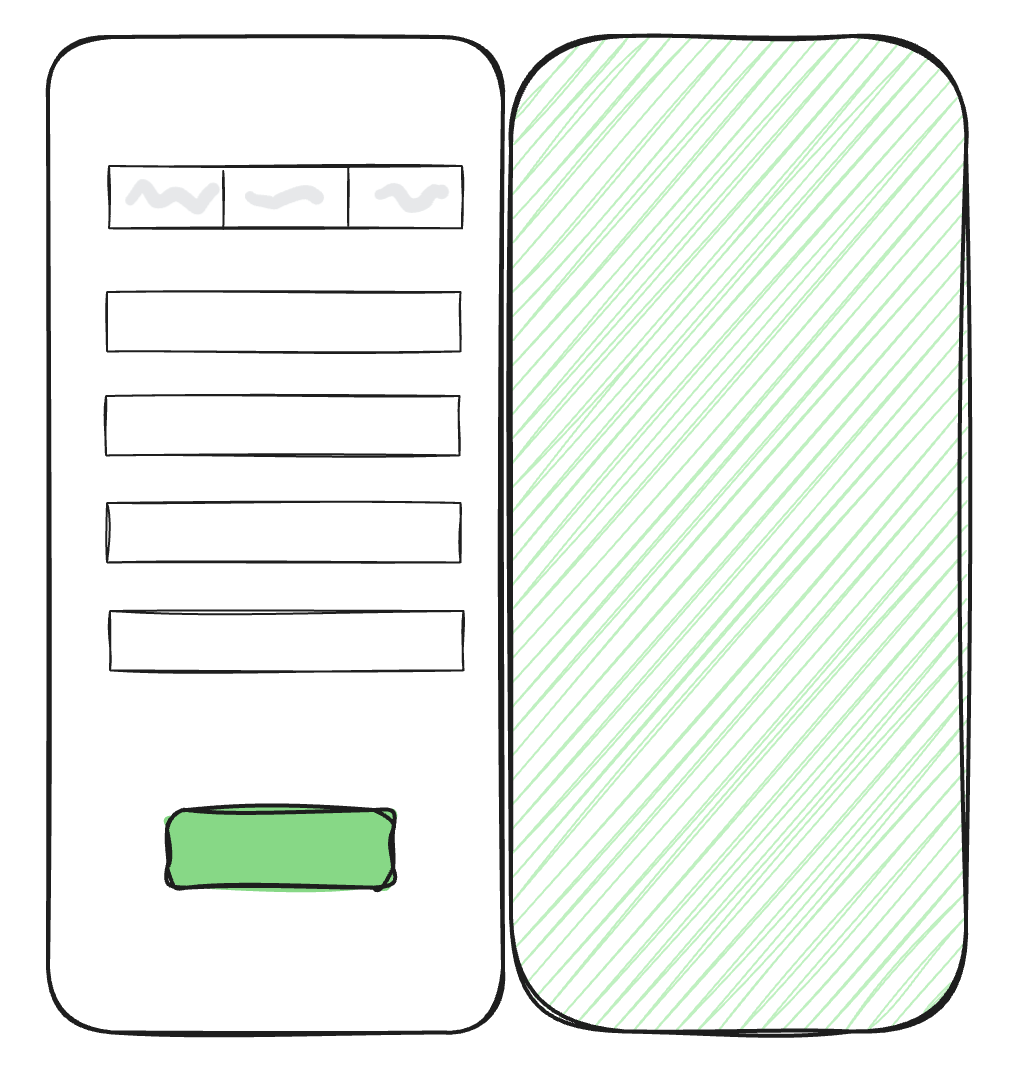
The FiftyFifty template splits the screen horizontally, with content/imagery on one side and the form on the other. This layout balances visual appeal with form prominence.
Configuration Options
| Setting | Description |
|---|---|
| Form Side | Place form on left or right |
| Side Image | Image for the non-form side |
| Image Shade | Darken image for text readability |
| Image Anchor Position | How to crop/position the image |
| Side Message | Optional text overlay on image |
| Include Header | Show header across full width |
| Header HTML | Custom header content |
| Include Footer | Show footer across full width |
| Footer HTML | Custom footer content |
Image Guidelines for FiftyFifty
- Orientation: Portrait/vertical images work best
- Subject placement: Center important elements - edges may be cropped
- Avoid text in images: Use the Side Message field instead
Form Side Selection
Choose whether the form appears on the left or right:
- Form on Left: Image/message on right - draws eye left-to-right toward form
- Form on Right: Image/message on left - lets imagery make first impression
Side Message
Like the Hero template’s hero message, this optional text appears over the side image. Useful for campaign messaging, testimonials, or impact statements.
Floating Template
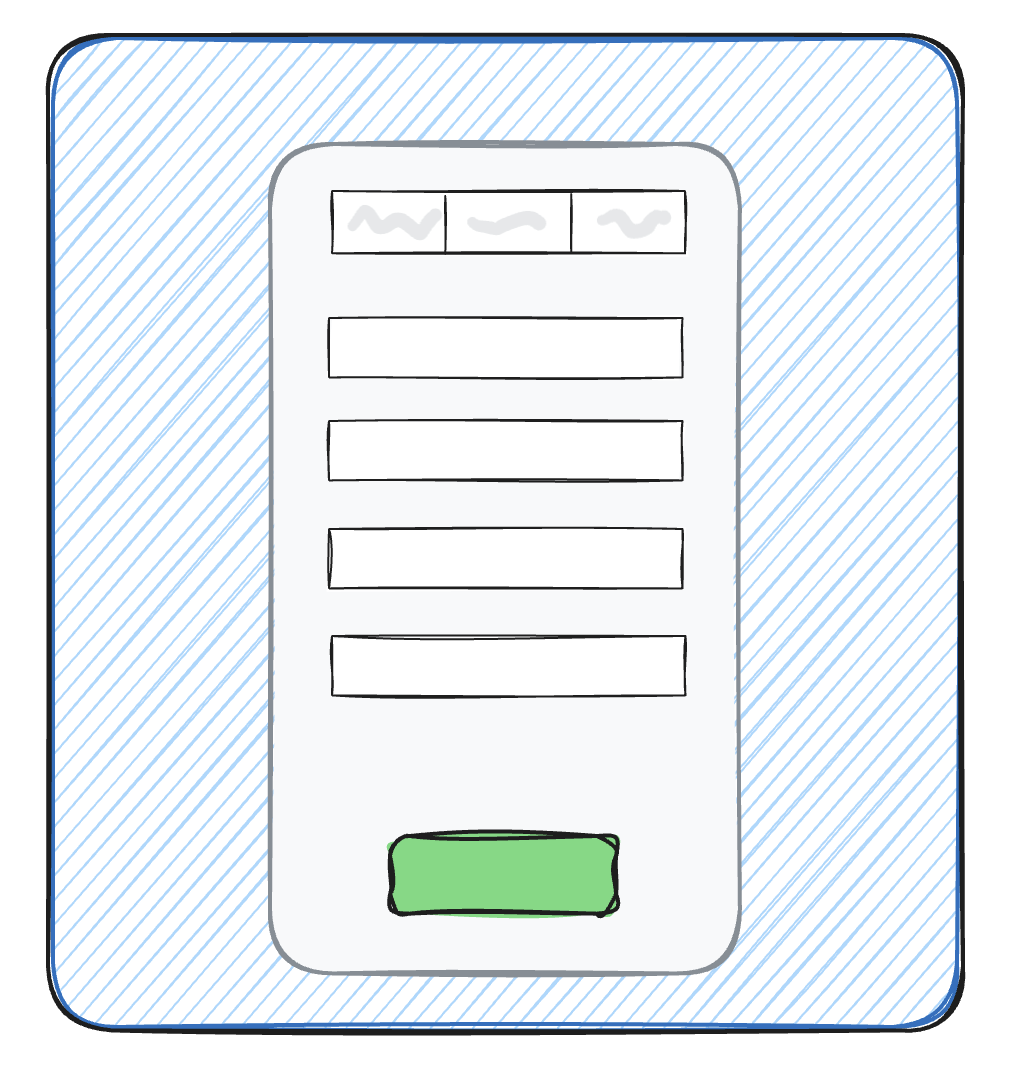
The Floating template displays the form in a centered card that “floats” over a background image. This creates a clean, focused experience with subtle branding.
Configuration Options
| Setting | Description |
|---|---|
| Form Width | How wide the form card appears |
| Hero Image URL | Background image URL |
| Hero Image Alt Text | Accessibility description |
| Hero Image Position | Background image anchor point |
| Include Header | Show header above form |
| Header HTML | Custom header content |
| Fixed Header | Make header sticky |
| Include Footer | Show footer below form |
| Footer HTML | Custom footer content |
Form Width Options
Control the width of the floating form card:
| Width | Description |
|---|---|
| 1/3 | Narrow - maximum background visibility |
| 1/2 | Balanced |
| 2/3 | Wider form, less background |
| 3/4 | Form-focused |
On mobile devices, the form always expands to full width.
Background Image Tips
- Use images with low visual complexity in the center (where form overlays)
- Consider images with interesting edges/corners
- The shade option can help if form readability is an issue
Vanilla Template
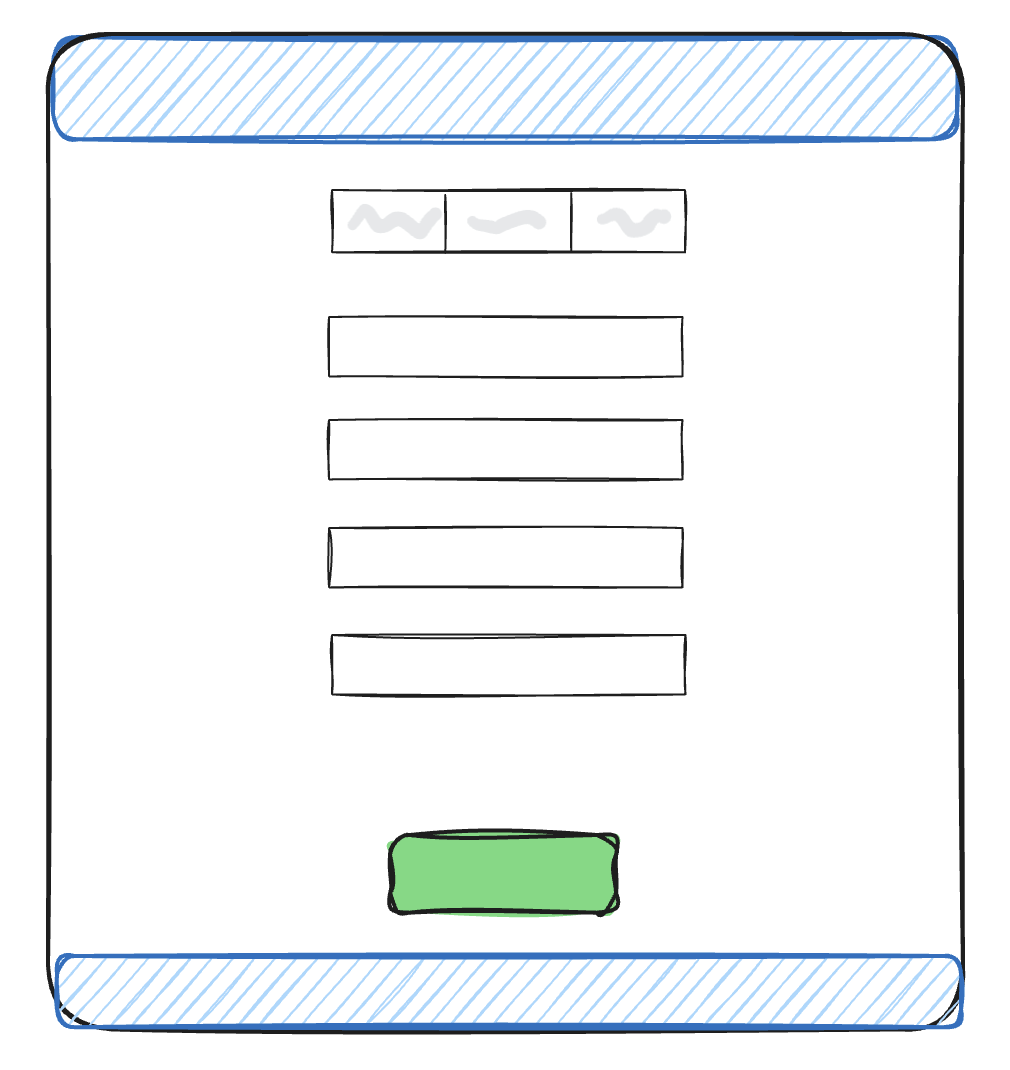
The Vanilla template is a clean, no-frills layout with just the form. No hero images or visual flourishes - just an efficient experience.
Configuration Options
| Setting | Description |
|---|---|
| Form Width | How wide the form appears |
| Include Header | Show header above form |
| Header HTML | Custom header content |
| Fixed Header | Make header sticky |
| Include Footer | Show footer below form |
| Footer HTML | Custom footer content |
When to Use Vanilla
- Embedded form experiences
- Mobile-first campaigns
- When page speed is critical
- When your branding is handled elsewhere (header/footer)
- A/B testing form conversion without visual distractions
Choosing the Right Template
Choose Hero when:
- You have compelling campaign imagery
- Visual storytelling is important
- The campaign has a strong visual identity
Choose FiftyFifty when:
- You want to balance imagery and form prominence
- You have a message or story to tell alongside the form
- Portrait-orientation images are available
Choose Floating when:
- You want subtle, understated branding
- The focus should be entirely on the form
- You have a beautiful background image that shouldn’t compete with the form
Choose Vanilla when:
- Speed and simplicity are priorities
- The form will be embedded in another page
- You want maximum form prominence
- Your header/footer provide sufficient branding
Responsive Behavior
All templates are fully responsive:
- Desktop: Full template layout as designed
- Tablet: Layouts adapt - FiftyFifty may stack vertically
- Mobile: Form fills screen width, images scale or hide appropriately
Test your chosen template on multiple device sizes before launching.
Changing Templates
You can change a skin’s template at any time:
- Go to System > Public Skin
- Edit the skin
- Select a different template
- Configure the new template’s settings
- Save
Note that template-specific settings (like Hero Message) won’t carry over when switching templates. You may need to reconfigure after switching.